part 3: Managing your backup with policies
In part 1 en part 2 of this series you can read about deploying the Hycu back-up controller and the basic configuration of Hycu. In this post we will have a look at the policies.
Im my opiniion, policies are some of the most important tools of the product. Not especially Hycu, but mainly every data protection tool. The easier it is to maintain policies, the more transparent the product will be as a whole. I saw a lot of tooling in the last two decades, and the policies in Hycu are really straightforward.
When deploying Hycu, you will get 4 policies out of the box. The most commonly used policies are included as standard. Even the naming is market-compliant.
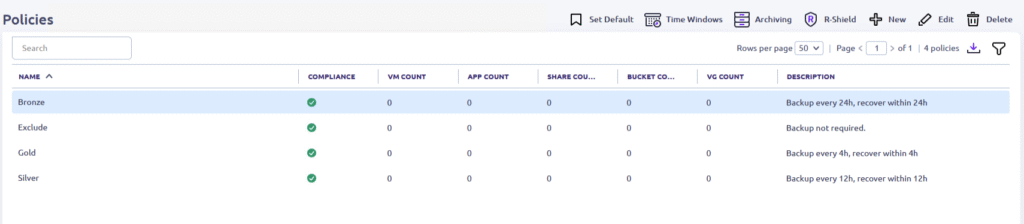
Gold , Silver and Bronze are well known names for policies. The name ‘Exclude’ doesn’t need much explanation. You don’t have to use those 4 policies, but they are a great start for implementing protection strategies. The policies can be adjusted as needed and of course additional policies can be added.
When zooming in to the policies, we see some options, that can be used.
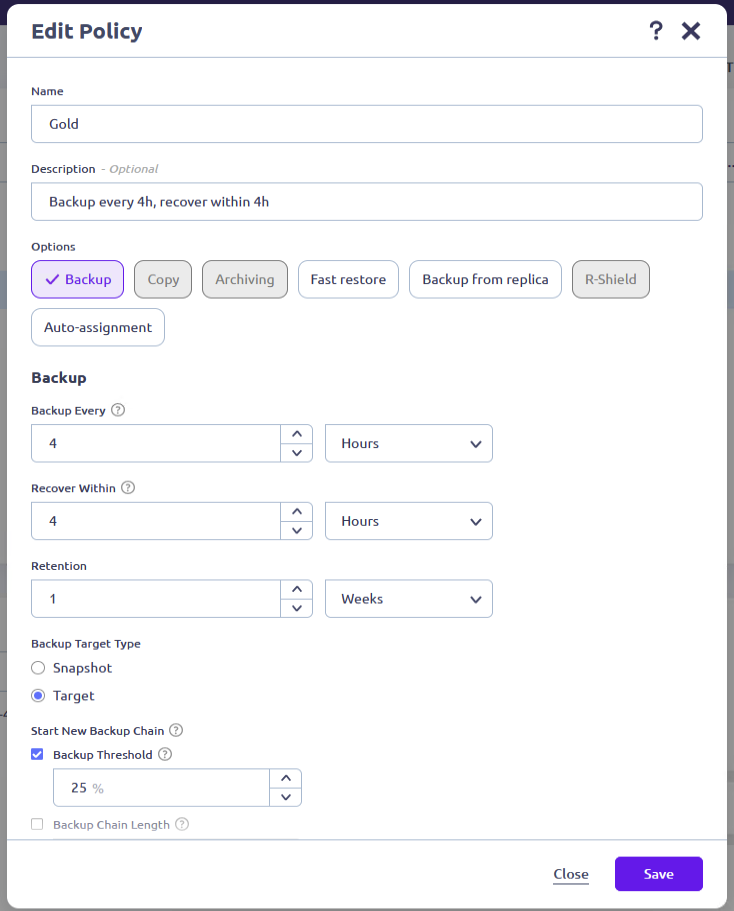
By default only the backup option is used within a policy. Backup speaks for itself. Data is stored on another place than the production data / vm.
Copy and archiving cannot be selected in this example as multiple targets have not been configured.
Copy means that the data will be mirrored to another target. Archiving will copy the data to another target and you are able to apply a different retention.
If ‘Fast restore’ is selected, you can specify how many snapshots / recovery points are kept on the source system. If enabled, these snapshots will be used for restore.
‘Backup from replica’ is an unique feature for Hycu and it allows you to create backups from a recovery point, replicated to another (DR) site.
R-Shield is relatively new, and will be covered in a future post. Auto-assignment is all about integration with Prism Central or vCenter. That’s covered later in this post.
You also defines the frequency of your backups as well as the time, Hycu should be able to recover the protected entities. Hycu will generate an alert when your RTO is in danger.
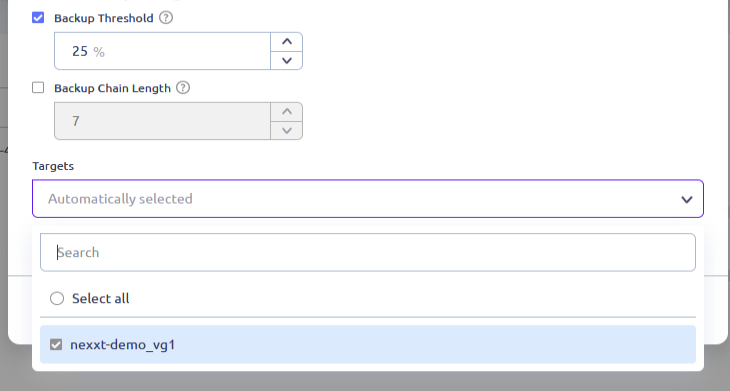
You can specify when a new backup chain is started. When configuring a percentage, a new backup chain is started if the amount of change data since the last full backup has reached the percentage.
When selecting the chain length, a new chain is started when a full with subsequent incremental jobs has reached the number configured.
If selecting both, it depends which condition will be met first.
With target, you configure the target where the backup data will be saved. You can add multiple targets, and Hycu will use all of them to store backup data. If any of the targets are in danger of becoming full, new targets can always be added later.
Auto-Assignment
Auto Assignment is a property in a policy that allows you to add virtual machines to a policy by using a category in Prism Central.
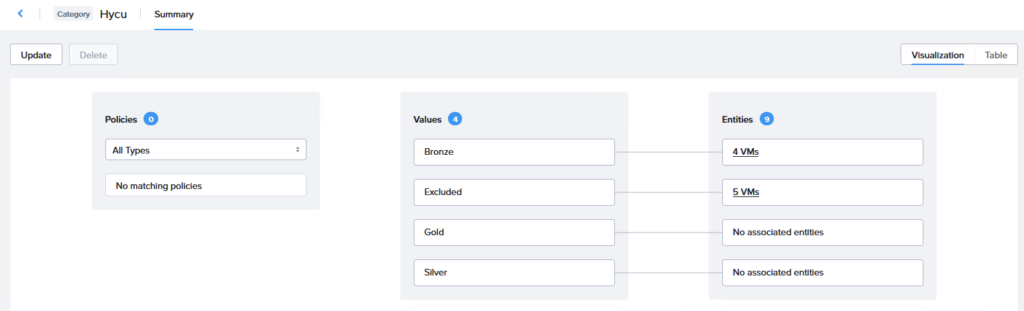
What I normally do in Prism Central is creating a category ‘Hycu’ in Prism Central. I add values to this category corresponding to the policies in Hycu. THis category:value pair is set to a VM.
In the policy definition this pair is added so Hycu can add virtual machines to a policy. Nutanix administrators do not need access to Hycu to get a virtual machine protected. They just need to add a category.
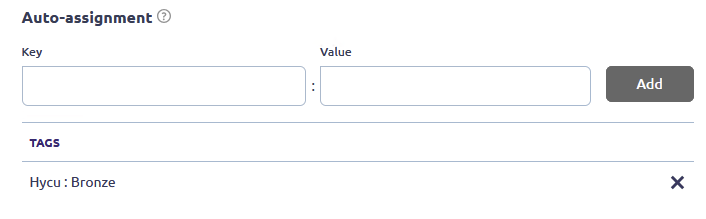
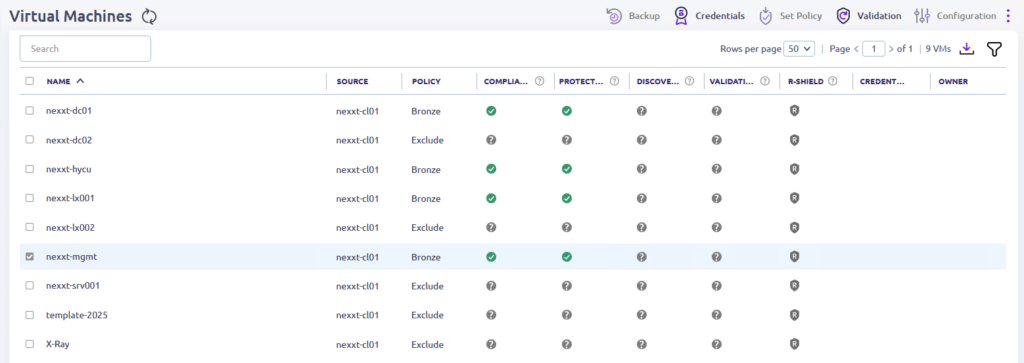
When added the category to a virtual machine, you will notice that the policies are applied. In the Virtual Machines overview, you can see directly which policy is applied. You can also see if the backups are compliant to the policy.
So, this is about Hycu policies for now. I will explain more in detail later, especially about copying and archiving options within the policy. Stay tuned.
Leave a Reply