Announced many years ago, but with AOS 7 and the latest Prism Central releases, the feature has finally arrived. Nutanix administrators are able to update their clusters from a single management interface. Multicluster LCM is available in Prism Central. You were able to only run inventory at first, but right now, it is possible to initiate the update as well in Prism Central.
Although it is called multicluster LCM, in the screenshots following, you will notice only one cluster. That’s not because only one cluster is supported, but more that our test environment is limited to one cluster at this moment.
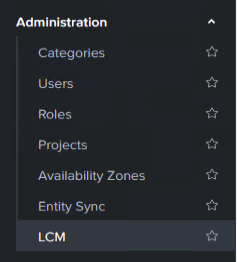
When opening Prism Central in the Infrastructure page, you will notice LCM in the bottom of the menu under ‘Administration’.
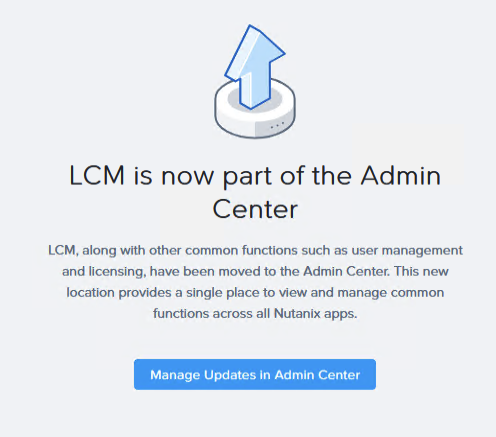
However, when selecting LCM in the Infrastructure tab, you will get a notice in the right window. LCM has moved to the Admin Center.
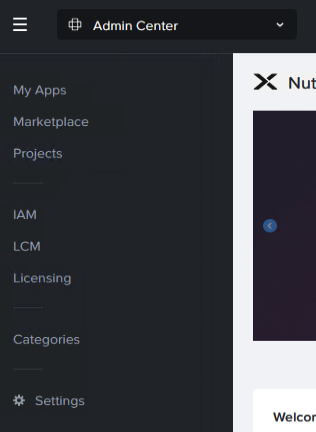
When finally arrived in Admin Center, you can see the LCM in the menu.
The LCM is divided in two tabs. One tab is for the Nutanix cluster(s), and the second one is for the Prism Central instance itself.
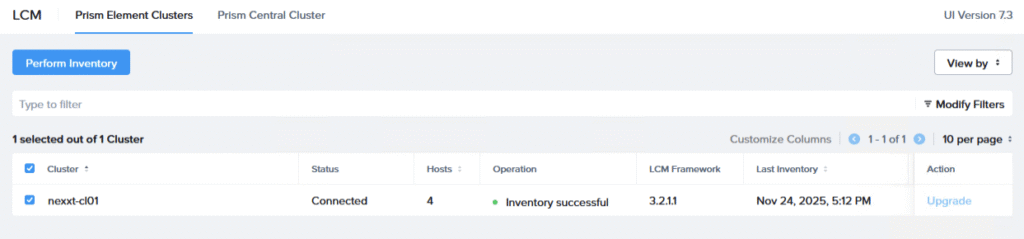

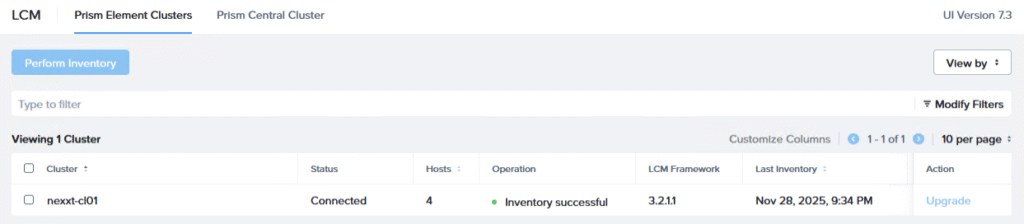
When you select a cluster, or the Prism Central, it is easy to start an inventory, Just click the blue button with ‘Perform Inventory’. This is very useful, if the last inventory is performed more than a couple of days ago. When clicked, the operation column is updated.

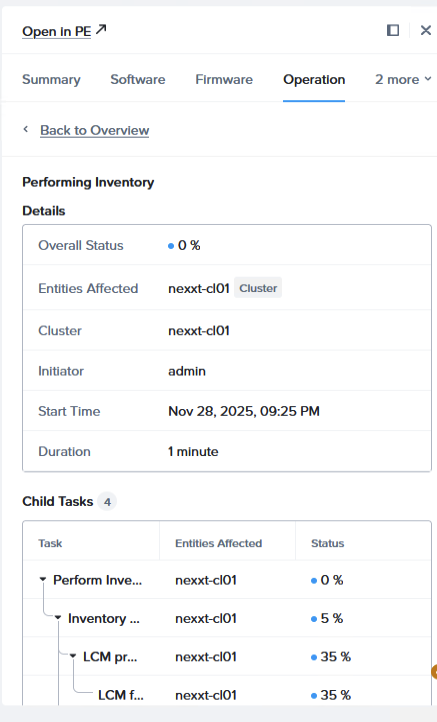
It is also possible to see the status more in detail. Just click on the cluster name and a new column appear. Click here Operation, and you will see all tasks. If you prefer the PE overview, the option to navigate to the cluster itself is available.
When the inventory is completed, the timestamp of the last inventory is updated. As long as the Upgrade is ‘greyed out’ and not clickable, there are no updates available for the cluster or Prism Central.
To be continued. When updates are available, I will add the proces to update.
Leave a Reply